> ## Documentation Index
> Fetch the complete documentation index at: https://docs.frenflow.com/llms.txt
> Use this file to discover all available pages before exploring further.
# Add Wallet to Tracker
> Start tracking any Polymarket wallet address on FrenFlow. Monitor whale moves and get alerts on their trades.
## Adding a Wallet
Navigate to the Wallet Tracker page from the sidebar.
Paste any Polymarket wallet address (0x...).
Give the wallet a custom name (e.g., "Whale #1", "That crypto guy") for easy identification.
Choose whether to get notified on buys, sells, or both.
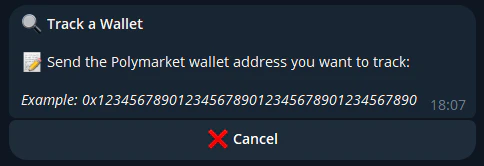 ## From Telegram
You can also add wallets from the Telegram bot:
```
/track 0x1234...abcd
```
## Managing Tracked Wallets
* **Edit label** — Rename any tracked wallet
* **Toggle alerts** — Turn buy/sell notifications on or off per wallet
* **Remove** — Stop tracking a wallet at any time
## From Telegram
You can also add wallets from the Telegram bot:
```
/track 0x1234...abcd
```
## Managing Tracked Wallets
* **Edit label** — Rename any tracked wallet
* **Toggle alerts** — Turn buy/sell notifications on or off per wallet
* **Remove** — Stop tracking a wallet at any time
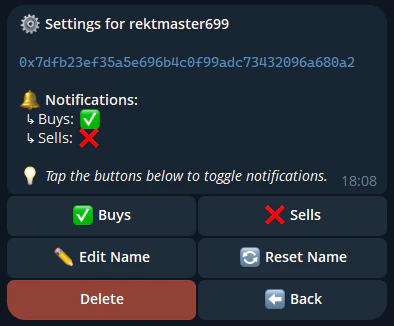 View all your tracked wallets with the `/tracking` command in Telegram or from the Wallet Tracker page on web.