> ## Documentation Index
> Fetch the complete documentation index at: https://docs.frenflow.com/llms.txt
> Use this file to discover all available pages before exploring further.
# Alerts & Notifications on Telegram
> Configure the FrenFlow Telegram Bot as your trading alert center. Price alerts, wallet tracker notifications, and trade confirmations.
 ## The Bot as Your Alert Center
The Telegram bot sends you real-time notifications for everything that matters — trade executions, price targets, wallet activity, and more. Set it up once and never miss an important event.
## 1. Price Alerts
Get notified when a market hits your target price.
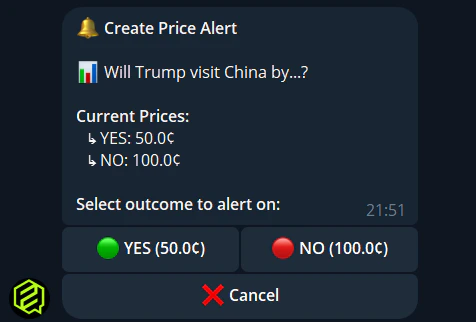
### Creating an Alert
Search for any market in the bot (type text or use `/search`).
On the market detail view, tap the alert button.
**Yes** or **No** — which side are you watching?
**Above** or **below** your target price.
Enter your target (1¢ to 99¢).
## The Bot as Your Alert Center
The Telegram bot sends you real-time notifications for everything that matters — trade executions, price targets, wallet activity, and more. Set it up once and never miss an important event.
## 1. Price Alerts
Get notified when a market hits your target price.
### Creating an Alert
Search for any market in the bot (type text or use `/search`).
On the market detail view, tap the alert button.
**Yes** or **No** — which side are you watching?
**Above** or **below** your target price.
Enter your target (1¢ to 99¢).
 ### Managing Alerts
```
/alerts — View all active price alerts
```
### Managing Alerts
```
/alerts — View all active price alerts
```
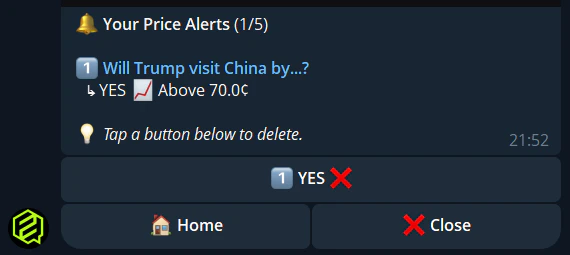
From the alerts view, you can delete any alert to free up slots (max 5 active).
## 2. Wallet Tracker Alerts
Track any Polymarket wallet and get notified when they trade:
```
/track 0x1234... — Start tracking a wallet
/tracking — View all tracked wallets
```
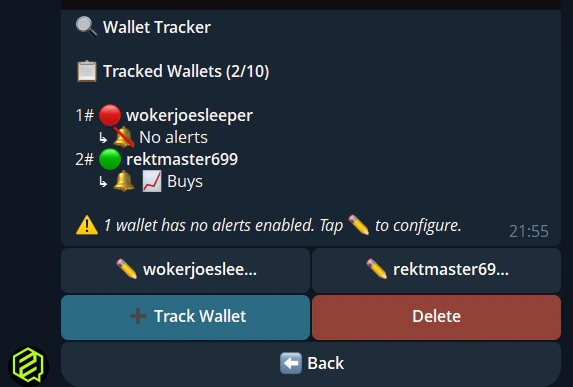
For each tracked wallet, you can toggle:
* **Buy alerts** — When the wallet buys shares
* **Sell alerts** — When the wallet sells
Tap on any tracked wallet in `/tracking` → **Settings** to configure.
## 3. Trading Notifications
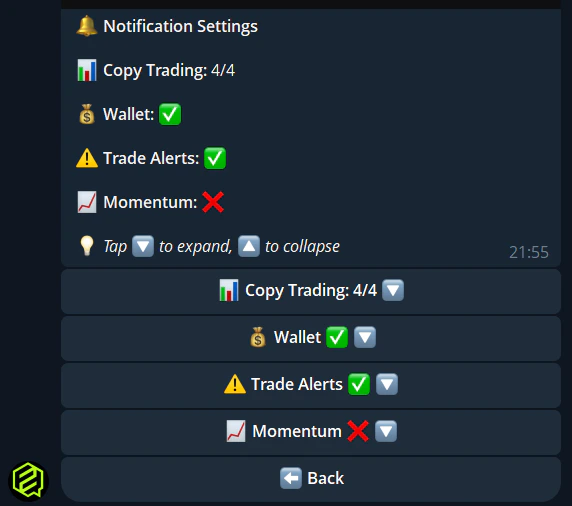
The bot automatically notifies you about your own trading events. Configure what you receive with `/notifications`:
| Notification | Description |
| ----------------------- | ---------------------------------------------- |
| **Copy trade executed** | A copy trade was placed on your behalf |
| **Limit order filled** | Your pending limit order was executed |
| **Limit order expired** | A GTD limit order reached its expiration |
| **Position resolved** | A market you hold resolved |
| **Trade confirmation** | Your manual trade was confirmed |
| **High slippage** | A copy trade was skipped due to price movement |
| **Low balance** | Your USDC balance is running low |
 ## 4. Momentum Alerts
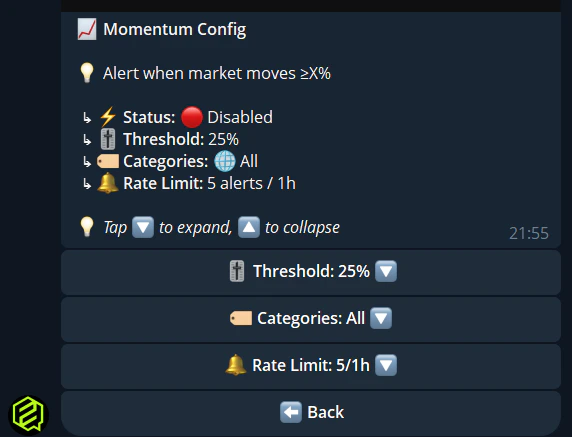
Get notified when markets move significantly. Configure from `/notifications` → **Momentum**:
| Setting | Description |
| ------------------------- | -------------------------------------------------- |
| **Threshold** | Minimum price movement to trigger (e.g., 10%) |
| **Category** | Filter by market category (Crypto, Politics, etc.) |
| **Max alerts per window** | Limit notification frequency |
| **Time window** | Cooldown period between alerts |
## 4. Momentum Alerts
Get notified when markets move significantly. Configure from `/notifications` → **Momentum**:
| Setting | Description |
| ------------------------- | -------------------------------------------------- |
| **Threshold** | Minimum price movement to trigger (e.g., 10%) |
| **Category** | Filter by market category (Crypto, Politics, etc.) |
| **Max alerts per window** | Limit notification frequency |
| **Time window** | Cooldown period between alerts |
 ## 5. Quick Toggle
Use `/notifications` to see all toggles in one view:
* **Enable all** — Turn on every notification type
* **Disable all** — Silence everything
* **Per-type toggles** — Fine-tune exactly what you want
## Tips
Start with the essentials: copy trade executions, price alerts, and low balance. Add more as needed. Too many alerts and you'll start ignoring them.
Set a reasonable threshold (10%+) and limit max alerts per window. Otherwise you'll get spammed during volatile periods.
Track a whale's wallet AND set price alerts on the markets they're trading. You'll know both when they trade and when the price moves.
If you need a break from notifications, mute the bot in Telegram's chat settings instead of disabling all alerts. Your alerts stay configured for when you unmute.
## 5. Quick Toggle
Use `/notifications` to see all toggles in one view:
* **Enable all** — Turn on every notification type
* **Disable all** — Silence everything
* **Per-type toggles** — Fine-tune exactly what you want
## Tips
Start with the essentials: copy trade executions, price alerts, and low balance. Add more as needed. Too many alerts and you'll start ignoring them.
Set a reasonable threshold (10%+) and limit max alerts per window. Otherwise you'll get spammed during volatile periods.
Track a whale's wallet AND set price alerts on the markets they're trading. You'll know both when they trade and when the price moves.
If you need a break from notifications, mute the bot in Telegram's chat settings instead of disabling all alerts. Your alerts stay configured for when you unmute.