> ## Documentation Index
> Fetch the complete documentation index at: https://docs.frenflow.com/llms.txt
> Use this file to discover all available pages before exploring further.
# Link Web + Telegram Accounts
> Connect your FrenFlow web and Telegram accounts. Share wallet, portfolio, and settings across both platforms seamlessly.
 ## Why Link?
Linking your web and Telegram accounts gives you a single FrenFlow identity across both platforms:
* **Same wallet** — One balance, no need to fund two wallets
* **Same positions** — Trades from web show in Telegram and vice versa
* **Same settings** — Copy trading configs, risk limits, notifications
* **Same portfolio** — Unified history, PnL, and stats
## Option 1: Link from Telegram → Web
If you started on the Telegram bot and want to use the website:
Use `/account` in the bot or tap **Account** in the main menu.
The bot shows a **🔐 Connect with Privy** button that opens a Mini App inside Telegram.
Sign in with email, Google, wallet, or Twitter. This creates or links your FrenFlow web account.
Your accounts are now linked. The bot confirms with your wallet address. You can log in on [frenflow.com](https://frenflow.com) with the same method.
## Option 2: Link from Web → Telegram
If you already have a FrenFlow account on the website:
On the website, navigate to **Settings**.
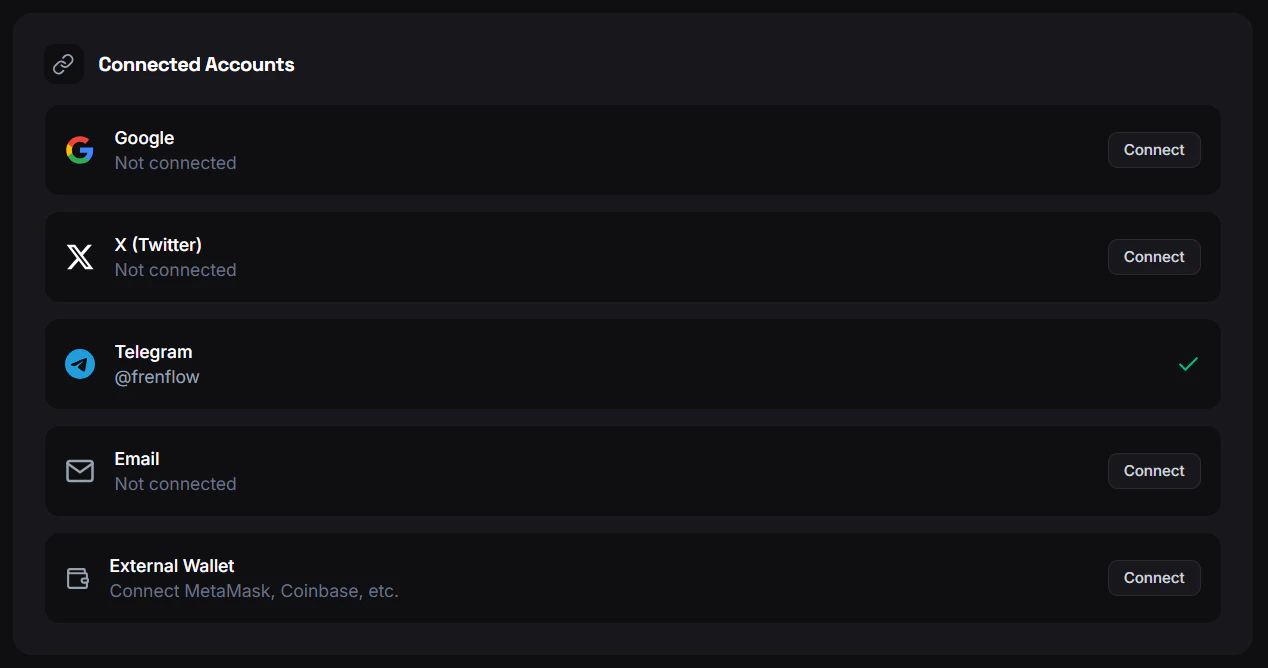
Under **Linked Accounts**, click the Telegram option. This uses Privy's native Telegram linking flow.
Authenticate with your Telegram account through the Privy dialog.
Go to [@FrenFlowBot](https://t.me/FrenFlowBot) and tap **Start**. Your account is now linked — the bot shows your existing balance and positions.
## Why Link?
Linking your web and Telegram accounts gives you a single FrenFlow identity across both platforms:
* **Same wallet** — One balance, no need to fund two wallets
* **Same positions** — Trades from web show in Telegram and vice versa
* **Same settings** — Copy trading configs, risk limits, notifications
* **Same portfolio** — Unified history, PnL, and stats
## Option 1: Link from Telegram → Web
If you started on the Telegram bot and want to use the website:
Use `/account` in the bot or tap **Account** in the main menu.
The bot shows a **🔐 Connect with Privy** button that opens a Mini App inside Telegram.
Sign in with email, Google, wallet, or Twitter. This creates or links your FrenFlow web account.
Your accounts are now linked. The bot confirms with your wallet address. You can log in on [frenflow.com](https://frenflow.com) with the same method.
## Option 2: Link from Web → Telegram
If you already have a FrenFlow account on the website:
On the website, navigate to **Settings**.
Under **Linked Accounts**, click the Telegram option. This uses Privy's native Telegram linking flow.
Authenticate with your Telegram account through the Privy dialog.
Go to [@FrenFlowBot](https://t.me/FrenFlowBot) and tap **Start**. Your account is now linked — the bot shows your existing balance and positions.
 ## What Syncs Automatically
| Data | Synced? |
| ---------------------------- | ------------------------------------------- |
| **Wallet address** | Yes — same wallet on both |
| **USDC balance** | Yes — real-time |
| **Open positions** | Yes |
| **Trade history** | Yes |
| **Copy trading leaders** | Yes |
| **Copy trading settings** | Yes — change on one, reflected on the other |
| **Risk limits** | Yes |
| **Notification preferences** | Yes |
| **Price alerts** | Yes |
| **Tracked wallets** | Yes |
| **Bookmarks / Watchlist** | Yes — same database |
| **Fren Points** | Yes |
| **Referral link** | Yes |
## What Doesn't Sync
| Data | Why |
| ------------------- | ----------------------------------- |
| **Degenbox layout** | Saved locally in browser — web only |
| **UI preferences** | Display settings are per-platform |
## Unlinking
1. Use `/account` in the bot
2. Tap **Disconnect Wallet**
3. Confirm
## What Syncs Automatically
| Data | Synced? |
| ---------------------------- | ------------------------------------------- |
| **Wallet address** | Yes — same wallet on both |
| **USDC balance** | Yes — real-time |
| **Open positions** | Yes |
| **Trade history** | Yes |
| **Copy trading leaders** | Yes |
| **Copy trading settings** | Yes — change on one, reflected on the other |
| **Risk limits** | Yes |
| **Notification preferences** | Yes |
| **Price alerts** | Yes |
| **Tracked wallets** | Yes |
| **Bookmarks / Watchlist** | Yes — same database |
| **Fren Points** | Yes |
| **Referral link** | Yes |
## What Doesn't Sync
| Data | Why |
| ------------------- | ----------------------------------- |
| **Degenbox layout** | Saved locally in browser — web only |
| **UI preferences** | Display settings are per-platform |
## Unlinking
1. Use `/account` in the bot
2. Tap **Disconnect Wallet**
3. Confirm
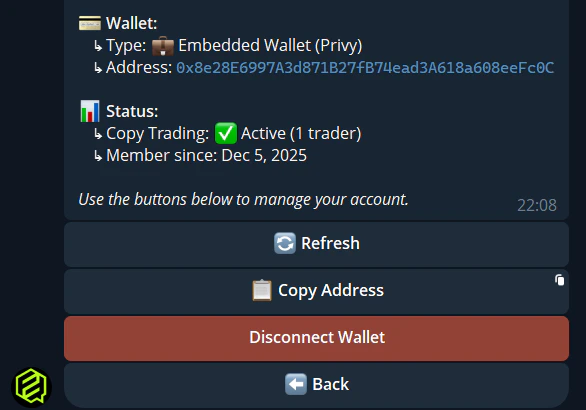
Unlinking does not delete your wallet or funds. It only disconnects the Telegram session from your web account. You can re-link anytime.
## Troubleshooting
Tap **Refresh** in `/wallet`. If it persists, use `/account` to verify which account is connected. You may have linked to a different email/wallet than expected.
Your Telegram is already connected to another FrenFlow account. Use `/account` in the bot to see which one. You need to unlink from that account first.
Make sure trading is enabled on the linked account. Use `/enabletrading` if needed. Positions should appear in `/positions` once the accounts are properly linked.