> ## Documentation Index
> Fetch the complete documentation index at: https://docs.frenflow.com/llms.txt
> Use this file to discover all available pages before exploring further.
# Fund Your Wallet — Complete Guide
> Every way to deposit USDC into your FrenFlow wallet. Bridge from any chain, transfer from exchanges, and swap USDC to USDC.e.
 ## Before You Trade
You need **USDC on Polygon** in your FrenFlow wallet to trade on Polymarket. This guide covers every way to get funds in.
Find your wallet address in **Settings → Wallet**. This is the address you'll send funds to.
## Option 1: Bridge from Any Chain (Easiest)
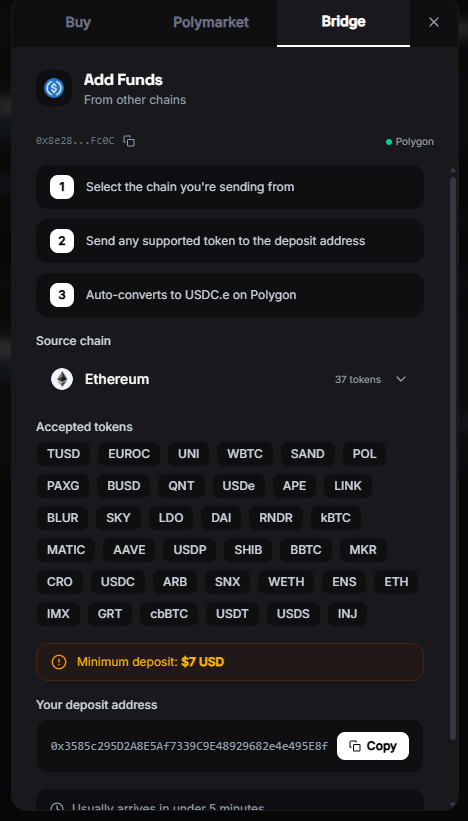
FrenFlow includes the Polymarket Bridge, which converts funds from 15+ blockchains directly to USDC.e on Polygon.
Click the **+** button in the header, or find **Add Funds** in the sidebar.
Select **Bridge** to open the Polymarket Bridge widget.
Pick where your funds are:
* **Ethereum** — ETH, USDC, USDT
* **Arbitrum** — ETH, USDC, ARB
* **Base** — ETH, USDC
* **Solana** — SOL, USDC
* And 10+ more chains
Enter how much to bridge. The widget shows the estimated amount you'll receive in USDC.e on Polygon. Confirm and approve the transaction in your external wallet.
Bridging takes 1–10 minutes depending on the source chain. Your FrenFlow balance updates automatically.
## Before You Trade
You need **USDC on Polygon** in your FrenFlow wallet to trade on Polymarket. This guide covers every way to get funds in.
Find your wallet address in **Settings → Wallet**. This is the address you'll send funds to.
## Option 1: Bridge from Any Chain (Easiest)
FrenFlow includes the Polymarket Bridge, which converts funds from 15+ blockchains directly to USDC.e on Polygon.
Click the **+** button in the header, or find **Add Funds** in the sidebar.
Select **Bridge** to open the Polymarket Bridge widget.
Pick where your funds are:
* **Ethereum** — ETH, USDC, USDT
* **Arbitrum** — ETH, USDC, ARB
* **Base** — ETH, USDC
* **Solana** — SOL, USDC
* And 10+ more chains
Enter how much to bridge. The widget shows the estimated amount you'll receive in USDC.e on Polygon. Confirm and approve the transaction in your external wallet.
Bridging takes 1–10 minutes depending on the source chain. Your FrenFlow balance updates automatically.
 ## Option 2: Send from an Exchange
If you have USDC on a centralized exchange (Coinbase, Binance, Kraken, etc.):
Go to **Settings → Wallet** and copy your Polygon wallet address.
On your exchange, withdraw USDC and select the **Polygon** network. Paste your FrenFlow wallet address.
Exchange withdrawals typically arrive in 1–5 minutes on Polygon.
Always select the **Polygon** network when withdrawing. Sending on the wrong network (e.g., Ethereum mainnet) will still arrive, but you'll need to bridge it to Polygon afterwards.
## Option 3: Transfer from Another Wallet
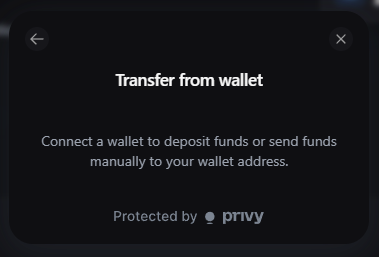
If you already have USDC or USDC.e on Polygon in MetaMask, Rabby, or any wallet:
1. Copy your FrenFlow wallet address from **Settings → Wallet**
2. Send USDC or USDC.e on Polygon to that address
3. Balance updates in seconds
## Option 2: Send from an Exchange
If you have USDC on a centralized exchange (Coinbase, Binance, Kraken, etc.):
Go to **Settings → Wallet** and copy your Polygon wallet address.
On your exchange, withdraw USDC and select the **Polygon** network. Paste your FrenFlow wallet address.
Exchange withdrawals typically arrive in 1–5 minutes on Polygon.
Always select the **Polygon** network when withdrawing. Sending on the wrong network (e.g., Ethereum mainnet) will still arrive, but you'll need to bridge it to Polygon afterwards.
## Option 3: Transfer from Another Wallet
If you already have USDC or USDC.e on Polygon in MetaMask, Rabby, or any wallet:
1. Copy your FrenFlow wallet address from **Settings → Wallet**
2. Send USDC or USDC.e on Polygon to that address
3. Balance updates in seconds
 ## USDC vs USDC.e
Polymarket uses **USDC.e** (bridged USDC) for trading. FrenFlow handles the conversion:
| Token | What it is | Used for |
| ---------- | ---------------------------------- | --------------------- |
| **USDC** | Circle's native USDC on Polygon | Deposits, withdrawals |
| **USDC.e** | Bridged USDC (Polymarket standard) | Trading on Polymarket |
If you deposit native USDC, FrenFlow shows both balances and provides a **one-click swap** to USDC.e. You can also swap manually from **Settings → Wallet → Swap to USDC.e**.
If you use the Polymarket Bridge, funds arrive as USDC.e directly — no swap needed.
## Funding for Kalshi (Solana)
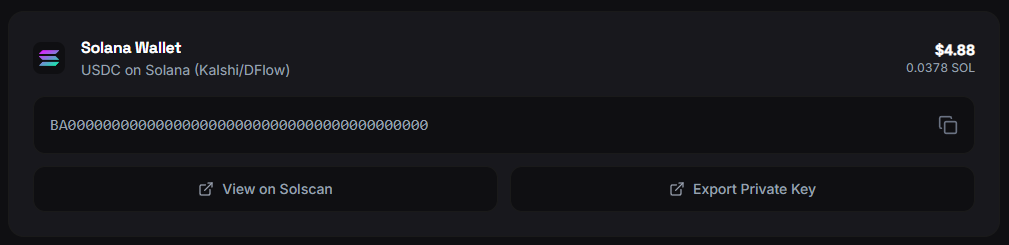
Kalshi markets on FrenFlow use **USDC on Solana** via DFlow. If you want to trade Kalshi:
1. Your Solana wallet address is shown in **Settings → Wallet** (below the Polygon wallet)
2. Send USDC on Solana to that address
3. Kalshi and Polymarket wallets are separate — fund each one independently
## USDC vs USDC.e
Polymarket uses **USDC.e** (bridged USDC) for trading. FrenFlow handles the conversion:
| Token | What it is | Used for |
| ---------- | ---------------------------------- | --------------------- |
| **USDC** | Circle's native USDC on Polygon | Deposits, withdrawals |
| **USDC.e** | Bridged USDC (Polymarket standard) | Trading on Polymarket |
If you deposit native USDC, FrenFlow shows both balances and provides a **one-click swap** to USDC.e. You can also swap manually from **Settings → Wallet → Swap to USDC.e**.
If you use the Polymarket Bridge, funds arrive as USDC.e directly — no swap needed.
## Funding for Kalshi (Solana)
Kalshi markets on FrenFlow use **USDC on Solana** via DFlow. If you want to trade Kalshi:
1. Your Solana wallet address is shown in **Settings → Wallet** (below the Polygon wallet)
2. Send USDC on Solana to that address
3. Kalshi and Polymarket wallets are separate — fund each one independently
 ## Minimum Amounts
| | Minimum |
| ----------------------- | ----------------------------------------------------- |
| **First trade** | \~\$1 (but \$5+ recommended for meaningful positions) |
| **Bridge** | Varies by source chain (usually \$5–10 minimum) |
| **Exchange withdrawal** | Depends on your exchange |
## Troubleshooting
Check that you sent on the **Polygon** network. If you sent on Ethereum or another chain, you'll need to bridge it. Your funds are safe — just on the wrong network.
You likely have native USDC but need USDC.e for Polymarket. Go to **Settings → Wallet → Swap to USDC.e**.
Bridges can take up to 15 minutes on congested networks. If it's been longer, check the bridge transaction on the source chain's block explorer.
Check **Settings → Wallet**. Both balances are shown separately: USDC (native) and USDC.e (bridged/Polymarket).
## Minimum Amounts
| | Minimum |
| ----------------------- | ----------------------------------------------------- |
| **First trade** | \~\$1 (but \$5+ recommended for meaningful positions) |
| **Bridge** | Varies by source chain (usually \$5–10 minimum) |
| **Exchange withdrawal** | Depends on your exchange |
## Troubleshooting
Check that you sent on the **Polygon** network. If you sent on Ethereum or another chain, you'll need to bridge it. Your funds are safe — just on the wrong network.
You likely have native USDC but need USDC.e for Polymarket. Go to **Settings → Wallet → Swap to USDC.e**.
Bridges can take up to 15 minutes on congested networks. If it's been longer, check the bridge transaction on the source chain's block explorer.
Check **Settings → Wallet**. Both balances are shown separately: USDC (native) and USDC.e (bridged/Polymarket).