> ## Documentation Index
> Fetch the complete documentation index at: https://docs.frenflow.com/llms.txt
> Use this file to discover all available pages before exploring further.
# How to Use Degenbox
> Build and customize your personal prediction market dashboard on FrenFlow. Add markets, rearrange events, and trade from one screen.
 ## What is Degenbox?
Degenbox is your personal multi-market dashboard. Add the markets you're watching, choose what data to display, and monitor everything in real-time — like a trading desk for prediction markets.
## 1. Open Degenbox
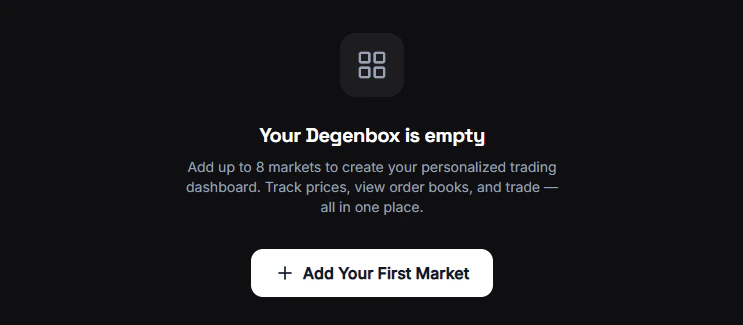
Navigate to **Degenbox** from the sidebar. You'll start with an empty board.
## What is Degenbox?
Degenbox is your personal multi-market dashboard. Add the markets you're watching, choose what data to display, and monitor everything in real-time — like a trading desk for prediction markets.
## 1. Open Degenbox
Navigate to **Degenbox** from the sidebar. You'll start with an empty board.
 ## 2. Add Your First Markets
A search modal opens where you can find any Polymarket market or event.
Type a keyword — "bitcoin", "election", "champions league" — and browse the results.
Click on a market or event to add it to your board. You can add:
* **Individual markets** — A single Yes/No question
* **Events** — An entire event with multiple related markets (e.g., "2026 Election" with all candidate markets)
Add as many markets as you want. Build your watchlist.
## 3. Choose Your View
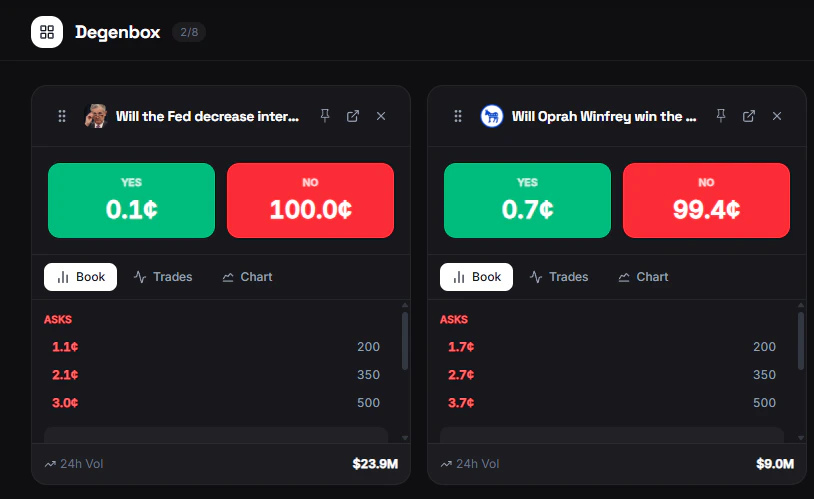
Each market card has three display modes. Toggle between them to see the data that matters most:
| View | Best for |
| ------------- | ------------------------------------------------------------ |
| **Orderbook** | Seeing bid/ask depth before trading. Where is the liquidity? |
| **Trades** | Watching what others are doing. Big buys? Panic sells? |
| **Chart** | Spotting trends. Is the probability climbing or dropping? |
Mix and match. Use **Chart** view for markets you're monitoring long-term, and **Orderbook** for markets you're actively looking to trade.
## 4. Organize Your Board
**Drag and drop** cards to rearrange them. Put your hottest markets at the top.
Suggested layouts:
| Strategy | Layout idea |
| ------------------ | -------------------------------------------------- |
| **Crypto focus** | BTC, ETH, SOL markets side by side |
| **Event tracking** | All markets from one event grouped together |
| **Copy trading** | Markets your copied leaders are trading |
| **Diversified** | One market per category — crypto, politics, sports |
## 2. Add Your First Markets
A search modal opens where you can find any Polymarket market or event.
Type a keyword — "bitcoin", "election", "champions league" — and browse the results.
Click on a market or event to add it to your board. You can add:
* **Individual markets** — A single Yes/No question
* **Events** — An entire event with multiple related markets (e.g., "2026 Election" with all candidate markets)
Add as many markets as you want. Build your watchlist.
## 3. Choose Your View
Each market card has three display modes. Toggle between them to see the data that matters most:
| View | Best for |
| ------------- | ------------------------------------------------------------ |
| **Orderbook** | Seeing bid/ask depth before trading. Where is the liquidity? |
| **Trades** | Watching what others are doing. Big buys? Panic sells? |
| **Chart** | Spotting trends. Is the probability climbing or dropping? |
Mix and match. Use **Chart** view for markets you're monitoring long-term, and **Orderbook** for markets you're actively looking to trade.
## 4. Organize Your Board
**Drag and drop** cards to rearrange them. Put your hottest markets at the top.
Suggested layouts:
| Strategy | Layout idea |
| ------------------ | -------------------------------------------------- |
| **Crypto focus** | BTC, ETH, SOL markets side by side |
| **Event tracking** | All markets from one event grouped together |
| **Copy trading** | Markets your copied leaders are trading |
| **Diversified** | One market per category — crypto, politics, sports |
 ## 5. Pin Markets
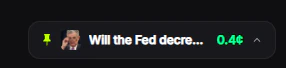
Click the **Pin** button on any market to pin it as a floating widget in the bottom-right corner of your screen. Pinned markets stay visible while you browse other pages — you can see live prices, mini-charts, and trade directly from the widget without leaving the page you're on.
* Expand or collapse each pinned market
* Buy Yes/No directly from the floating widget
* Remove with the X button
## 6. Trade Directly
Click on any market card to open the full market page with the trading modal. No need to search again — go straight from monitoring to trading.
## Good to Know
* **Saved locally** — Your layout persists in your browser across sessions
* **Real-time prices** — All cards update live, no need to refresh
* **Remove anytime** — Click the remove button on any card to take it off
Degenbox is a web-only feature. It's not available from the Telegram Bot — use `/bookmarks` in Telegram for a similar saved-markets experience.
## 5. Pin Markets
Click the **Pin** button on any market to pin it as a floating widget in the bottom-right corner of your screen. Pinned markets stay visible while you browse other pages — you can see live prices, mini-charts, and trade directly from the widget without leaving the page you're on.
* Expand or collapse each pinned market
* Buy Yes/No directly from the floating widget
* Remove with the X button
## 6. Trade Directly
Click on any market card to open the full market page with the trading modal. No need to search again — go straight from monitoring to trading.
## Good to Know
* **Saved locally** — Your layout persists in your browser across sessions
* **Real-time prices** — All cards update live, no need to refresh
* **Remove anytime** — Click the remove button on any card to take it off
Degenbox is a web-only feature. It's not available from the Telegram Bot — use `/bookmarks` in Telegram for a similar saved-markets experience.