> ## Documentation Index
> Fetch the complete documentation index at: https://docs.frenflow.com/llms.txt
> Use this file to discover all available pages before exploring further.
# Notification Settings
> Configure FrenFlow notifications for trades, copy trading, social activity, and price alerts. Manage web and Telegram preferences.
 ## Notification Types
FrenFlow sends notifications for various events across trading, copy trading, and social activity:
| Notification | Description |
| ------------------------- | --------------------------------------------------- |
| **Copy trade executed** | When a copy trade is placed on your behalf |
| **Limit order filled** | When your pending limit order executes |
| **Limit order expired** | When a GTD limit order reaches its expiration |
| **Position resolved** | When a market you have a position in resolves |
| **Price alert triggered** | When a market hits your target price |
| **Wallet tracker alert** | When a tracked wallet makes a trade |
| **Low balance warning** | When your USDC balance is running low |
| **High slippage alert** | When a copy trade was skipped due to price movement |
## Notification Channels
Browser notifications on desktop. Enable from Settings → Notifications.
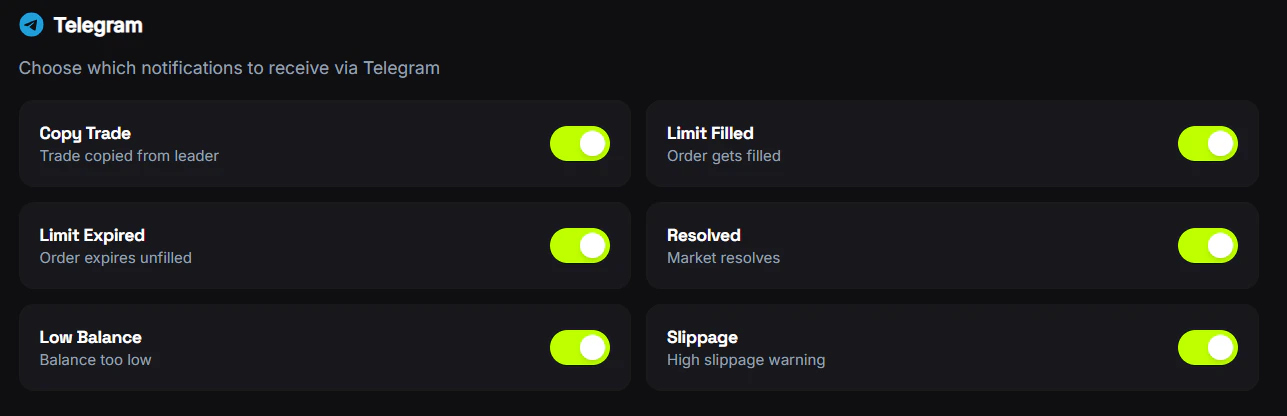
Direct messages from the FrenFlow bot. Enabled automatically when you link Telegram.
## Managing Notifications
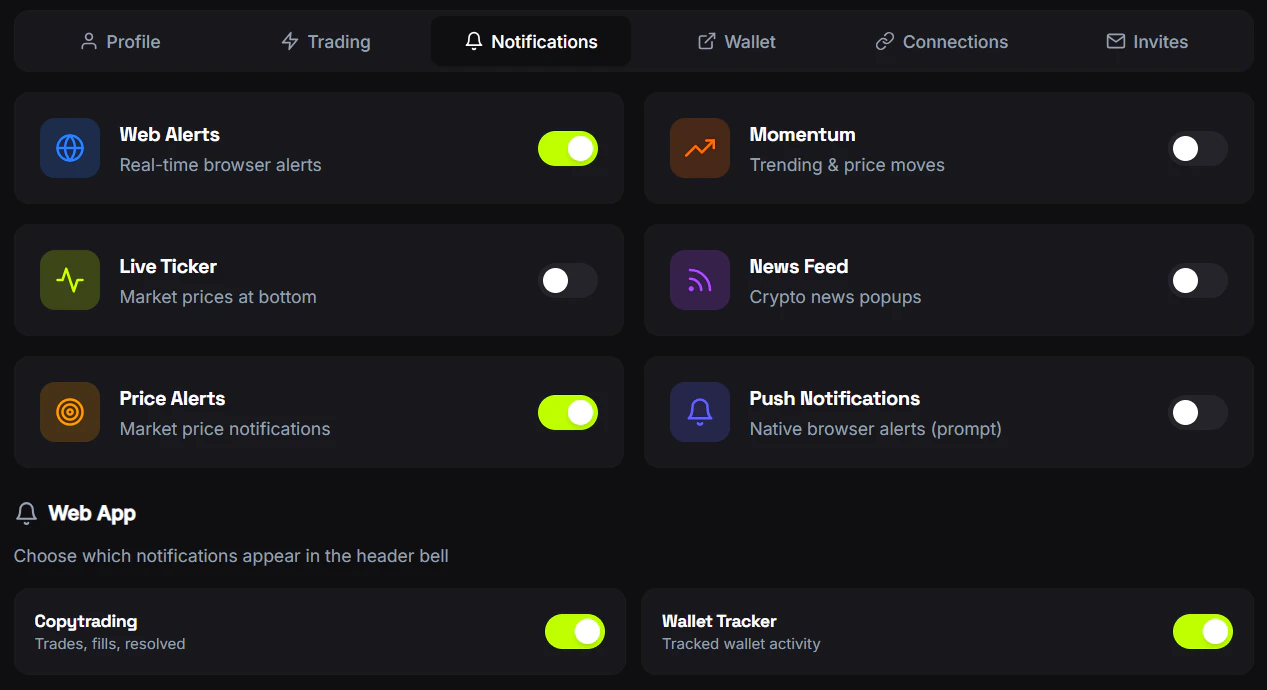
Go to **Settings → Notifications** to toggle each notification type on or off. You can also configure:
* **News notifications** — RSS feed updates about prediction markets
* **Momentum alerts** — Price movement alerts for markets you follow
## Notification Types
FrenFlow sends notifications for various events across trading, copy trading, and social activity:
| Notification | Description |
| ------------------------- | --------------------------------------------------- |
| **Copy trade executed** | When a copy trade is placed on your behalf |
| **Limit order filled** | When your pending limit order executes |
| **Limit order expired** | When a GTD limit order reaches its expiration |
| **Position resolved** | When a market you have a position in resolves |
| **Price alert triggered** | When a market hits your target price |
| **Wallet tracker alert** | When a tracked wallet makes a trade |
| **Low balance warning** | When your USDC balance is running low |
| **High slippage alert** | When a copy trade was skipped due to price movement |
## Notification Channels
Browser notifications on desktop. Enable from Settings → Notifications.
Direct messages from the FrenFlow bot. Enabled automatically when you link Telegram.
## Managing Notifications
Go to **Settings → Notifications** to toggle each notification type on or off. You can also configure:
* **News notifications** — RSS feed updates about prediction markets
* **Momentum alerts** — Price movement alerts for markets you follow
 ## From Telegram
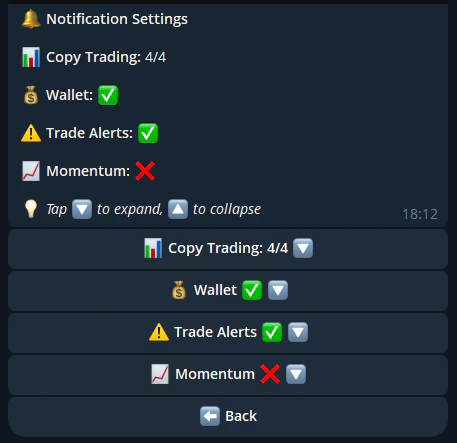
Use `/notifications` in the bot to toggle each notification type. You can also configure momentum alert settings (threshold, category, max alerts per window) directly from the chat. Changes sync between web and Telegram.
## From Telegram
Use `/notifications` in the bot to toggle each notification type. You can also configure momentum alert settings (threshold, category, max alerts per window) directly from the chat. Changes sync between web and Telegram.